Imagine trying to enter a building only to find there are no stairs or ramps, just a high wall. For millions of users with disabilities, an inaccessible website feels exactly like that. Many businesses unintentionally create digital barriers that block people from buying products, reading content, or contacting support.
Beyond the user impact, inaccessible websites also carry legal risk. In the UK, the Equality Act 2010 requires digital services to make reasonable adjustments for disabled users. Read: How ADA Compliance Prevents Lawsuits For businesses, getting this wrong is not just a reputational issue, it is a legal one
For businesses, getting this wrong is not just a reputational issue; it is a standard expectation for the modern internet. To help businesses navigate this, the WCAG 2.1 accessibility standards were created. These serve as the global benchmark for making websites usable for everyone, regardless of disability.
This guide covers what the WCAG 2.1 web accessibility guidelines require, how to check if your site is compliant, and what to prioritise first.
What Is WCAG 2.1?
WCAG 2.1 is the Web Content Accessibility Guidelines. Think of it as the “building code” for the internet. Developed by the World Wide Web Consortium (W3C), these standards provide a technical framework to ensure websites are usable for everyone including people with visual, hearing, motor, or cognitive disabilities.
Understanding what the WCAG 2.1 accessibility requirements for websites actually mean in practice is what this guide is designed to help with.
The Three Compliance Levels:
- Level A: The bare minimum (basic accessibility).
- Level AA: The industry standard for businesses and legal requirements.
- Level AAA: The most advanced and strictest level of accessibility.
Reaching Level AA ensures your site meets professional web accessibility standards for websites while remaining modern and functional.
Understanding these standards is easier when you look at the four core principles that guide every accessible design choice.
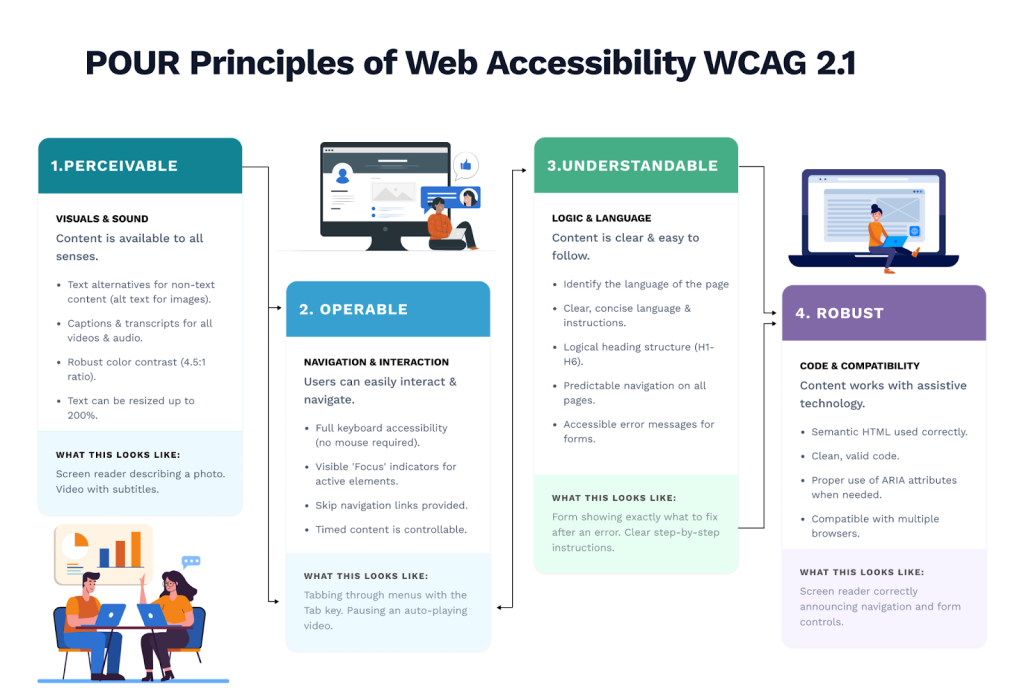
The Four Principles of WCAG Accessibility (POUR)
To help businesses understand how to make a website WCAG-compliant, the guidelines are organised into four foundational principles. Known by the acronym POUR, these principles ensure that your digital content is functional for all users, regardless of how they interact with the web.
Perceivable
Users must be able to recognize the information being presented. It cannot be invisible to all their senses.
- What this looks like: Providing alt text for images so screen readers can describe them, and using high colour contrast so text is readable for everyone.
Operable
The interface and navigation must be functional. The website cannot require actions that a user is physically unable to perform.
- What this looks like: Ensuring the site is fully navigable via keyboard. A user should be able to move through menus and click buttons using only the “Tab” and “Enter” keys.
Understandable
The information and the website’s layout must be easy to follow.
- What this looks like: Using clear, simple language and ensuring that navigation menus stay in the same place on every page so users don’t get lost.
Robust
Your content must be strong enough to work with a wide variety of browsers and assistive technologies.
What this looks like: Using clean, standard HTML. This ensures that as technology evolves like new AI-driven browsers or screen readers your website remains functional and compatible.
WCAG 2.1 Accessibility Checklist for Websites
To ensure your digital presence is truly inclusive, you need a structured way to evaluate your site. If you’ve been asking what is included in a WCAG accessibility checklist, the four sections below cover every major requirement at the Level AA standard.
1. Visual & Content Checklist
Most accessibility failures start here, with content that users simply cannot see, read, or interpret without assistance
- Descriptive Alt Text: Provide text alternatives for every meaningful image.
- Colour Contrast: Ensure a contrast ratio of at least 4.5:1 for standard text.
- No colour Dependency: Do not use colour as the only way to convey meaning (e.g., use an asterisk for required fields, not just red text).
- Text Resizing: Users must be able to zoom up to 200% without losing content or functionality.
2. Navigation & Interaction Checklist
A website that cannot be navigated without a mouse excludes a significant portion of users before they even reach your content.
- Keyboard Accessibility: Every link, button, and form must be accessible only with the “Tab” key.
- Visible Focus: Ensure a clear “focus ring” or glow appears around elements when they are selected via keyboard.
- Skip Navigation: Provide a “Skip to Main Content” link at the top of the page for screen reader users.
- Heading Hierarchy: Use a logical H1–H6 structure so users (and AI) can understand the page organisation.
3. Forms & Media Checklist
Forms and media are where most businesses unknowingly lose disabled users, they look functional but break down the moment someone relies on assistive technology.
- Form Labels: Every input field must have a permanent, visible label (not just placeholder text).
- Error Identification: If an error occurs, the site must clearly describe it in text and suggest a fix.
- Video Captions: All video content must include synced captions for users with hearing impairments.
- Audio Transcripts: Provide text-based transcripts for podcasts or audio-only clips.
4. Code & Technical Structure
None of the above will hold up long-term if the underlying code isn’t built to the right standard. This section is less visible to users but just as critical to compliance.
- Semantic HTML: Use the correct tags (like <nav> for menus or <button> for actions) so assistive tools understand the page.
- Language Declaration: Tell the browser what language the page is in (e.g., English) so screen readers use the correct pronunciation.
- No Keyboard Traps: Ensure users can enter and exit any part of the page (like a pop-up) using only a keyboard.
- Clean Code: Valid, error-free code ensures your site works reliably across different browsers and screen readers.
Common Website Accessibility Issues
Even with a checklist, many teams fall into the same traps. Accessibility failures are rarely obvious from the inside. These are the barriers your visitors are hitting that your team has likely never noticed.
- Empty Links or Buttons: Using an icon (like a “Social Media” logo) without a text label. A screen reader will just say “Link,” which doesn’t tell the user where it goes.
- Inaccessible Documents: Uploading PDFs that aren’t tagged for accessibility. If a PDF is just a scanned image of text, a screen reader cannot read it at all.
- Timed Content without Control: Having a “carousel” or slider that moves automatically without a way for the user to pause or stop it. This is a major issue for users with cognitive disabilities.
- Inaccessible Forms: Relying solely on placeholder text (the gray text inside the box). Once a user starts typing, the placeholder disappears, leaving them without a guide if they forget what the field was for.
Addressing these common problems is often the fastest way to improve your site’s user experience, and research consistently shows that accessible websites also rank better in search, as the structural improvements required for WCAG compliance align closely with what search engines reward.
How to Test Website Accessibility For Your Site
One of the most common questions we hear is: how do I check if my website meets WCAG standards? The answer is a combination of automated tools and manual testing.
We recommend a “hybrid” approach to ensure you catch both technical and usability errors:
- Automated Testing: Use free browser extensions like WAVE, Axe, or Google Lighthouse. These tools are excellent for catching quick wins like missing labels or poor contrast ratios in seconds
- Manual Keyboard Testing: This is the most effective way to test. Unplug your mouse and try to navigate your entire site using only the Tab, Shift+Tab, and Enter keys. If you get stuck in a menu or can’t reach a button, your site isn’t fully WCAG compliant.
- Screen Reader Testing: Use built-in tools like VoiceOver (Mac) or NVDA (Windows) to hear how your website “sounds.” This often reveals structural issues, like an illogical reading order, that automated tools might miss.
Each of these testing methods aligns with the WCAG accessibility requirements for websites, helping you identify exactly which standard you’re falling short of.
Conclusion
An inaccessible website doesn’t just frustrate users, it turns them away, exposes your business to legal risk, and signals to search engines that your content isn’t built to a professional standard. WCAG 2.1 compliance addresses all three. The checklist in this guide gives you a clear picture of where your site stands, but knowing the gaps and closing them are two very different things.
If you’re unsure where to start, Beanstalk’s web accessibility services can help you audit and implement the changes that matter, so your website works for every user who lands on it, not just most of them.